✔ Confirm — and what always asks
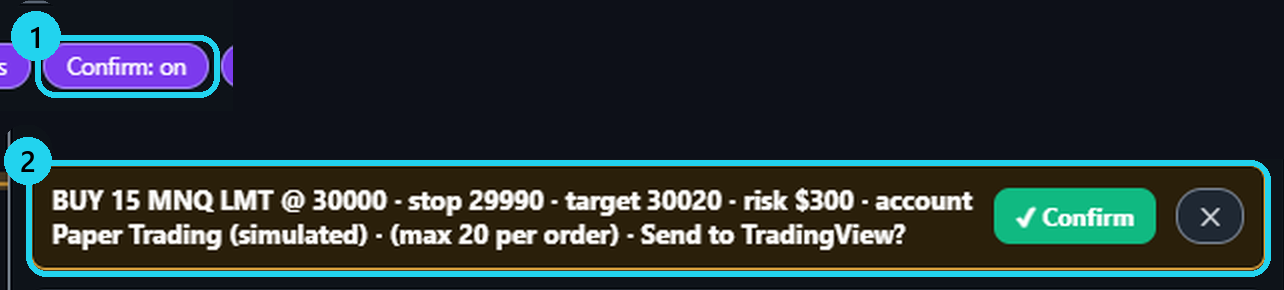
1Review the order, then Confirm
Nothing is sent until ✔ Confirm.
More
- With it off, one click sends.
- These always ask, even with Confirm off: ⏹ Close position · ✕ Cancel entries · ✕ Cancel all orders · ½ Close · Alt+X and Alt+E · loosening a stop · moving a waiting entry · BE · BE+4 · Trail.
- Every order change that adds risk asks ✔ Confirm; with Confirm on, every change does.
Risk per trade — VECTOR sizes it
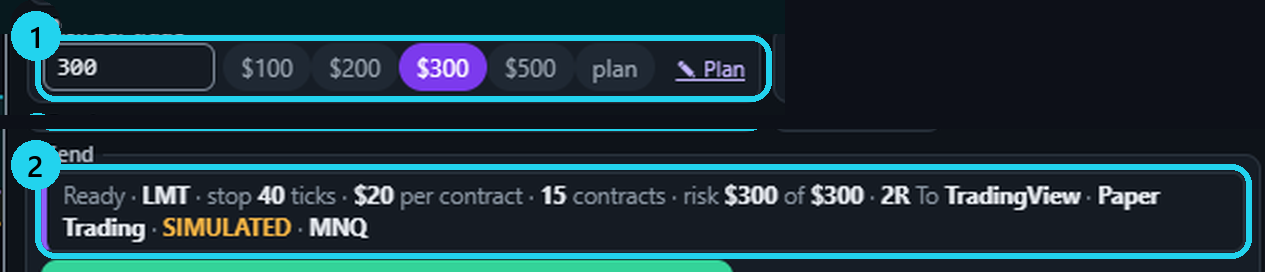
1Pick a risk per trade
VECTOR sizes it. Wider stop = fewer contracts.
More
- Want your own size? Type it in Size.
- A draft from a chat card is sized by the card's risk. One contract already above the budget? The ticket shows 0 and won't place.
- The size is always capped by max contracts per order (20 unless your plan says otherwise).
- The risk is an estimate: fees and slippage can make the real loss bigger.
Your daily plan and its locks
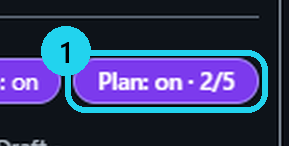
1«Plan: on» — today's trades
Turns red near a daily limit.
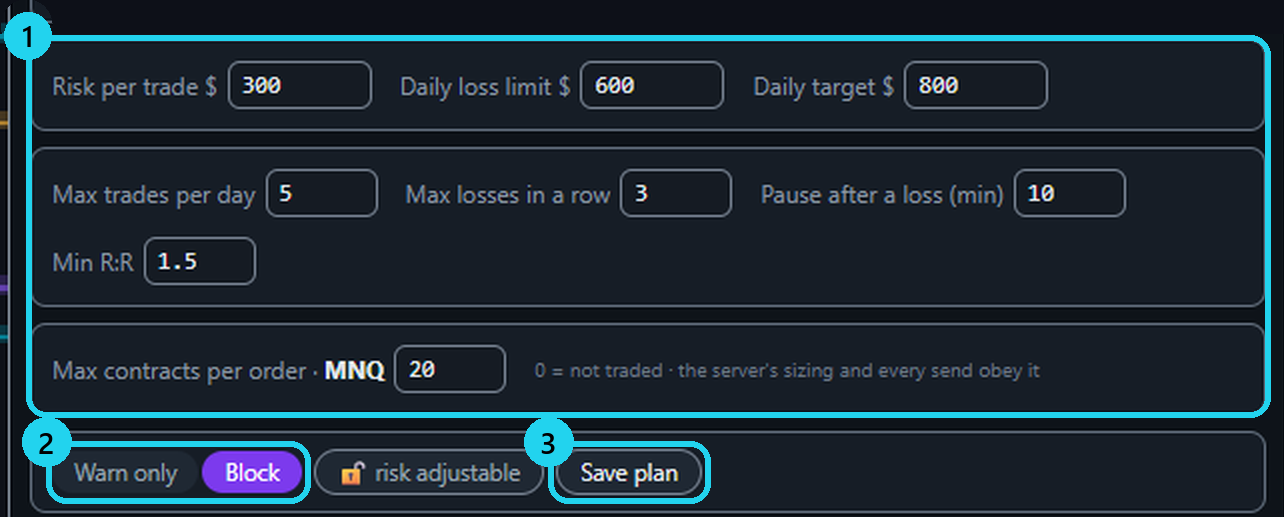
2Open Plan, set limits, then Save
A lock blocks new orders only.
More
- Locks: daily loss hit — sending is locked until 17:00 Chicago time. Max trades and the daily target lock the day too; a loss, a loss streak or tilt gives a short break.
- Exits, stops and closing always work.
- No saved plan? Then only the risk and the contract cap are checked — not the daily rules.
When VECTOR is not connected
1«No answer»? Check the platform
Nothing is re-sent by itself.

2VECTOR never blocks an exit
Existing broker orders remain.
More
- No answer from the server for about 10 minutes? A banner says new entries are paused. When the connection is back, send again.
- VECTOR never blocks an exit — not a plan lock, not a pause of new entries, not a required update.
- Meanwhile, manage open positions directly on the platform. Check your internet connection.
«Cancel entries» or «Cancel all orders»
1«Cancel all orders»
This also removes protective stops.
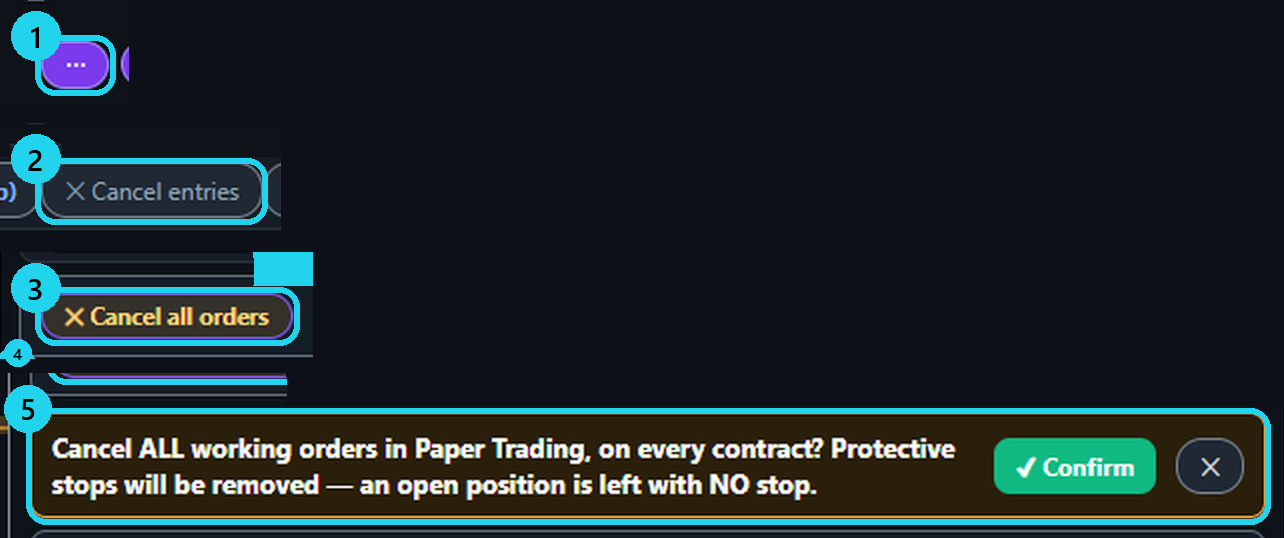
More
- ✕ Cancel entries — only the waiting entries on this contract. The position's stop and target stay.
- ✕ Cancel all orders — every working order in the account, on every contract, protective stops included. Both always ask ✔ Confirm.
- Cancelled everything with a position open? Click 🛡 Protect (stop) right away.
Light and Massive levels, and the gauges
1Light levels
More levels.
2Massive levels
Fewer, stronger levels.
3The gauges on the Desk tab
Fast gauges left; trend gauges right.
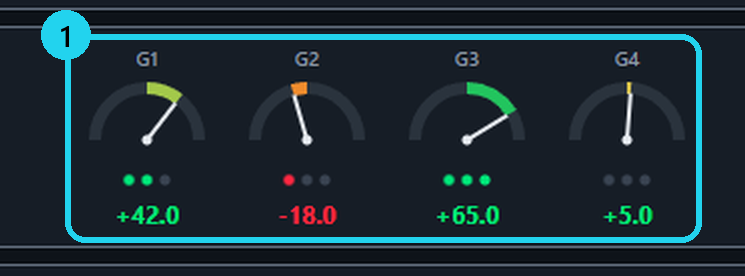
More
- Light — more levels. Massive — fewer, stronger levels. Every plan sees both; which ones alert you depends on your plan.
- The level gauge: above the price REJECT %, below it HOLD % — a neutral purple: a reading, not a direction.
- Labels: Right / Left moves the level labels. Levels that sit on top of each other show as one label with a count, for example «+1 · 1D LVN · Massive».
- A gauge is information, not a signal. It never places an order.
🎯 Practice in Level Arena
A training game: real moments when price touched a VECTOR level, from 2018 to today. Play each one as a trade — side, entry, stop, target and a time limit — then see the real outcome in R.
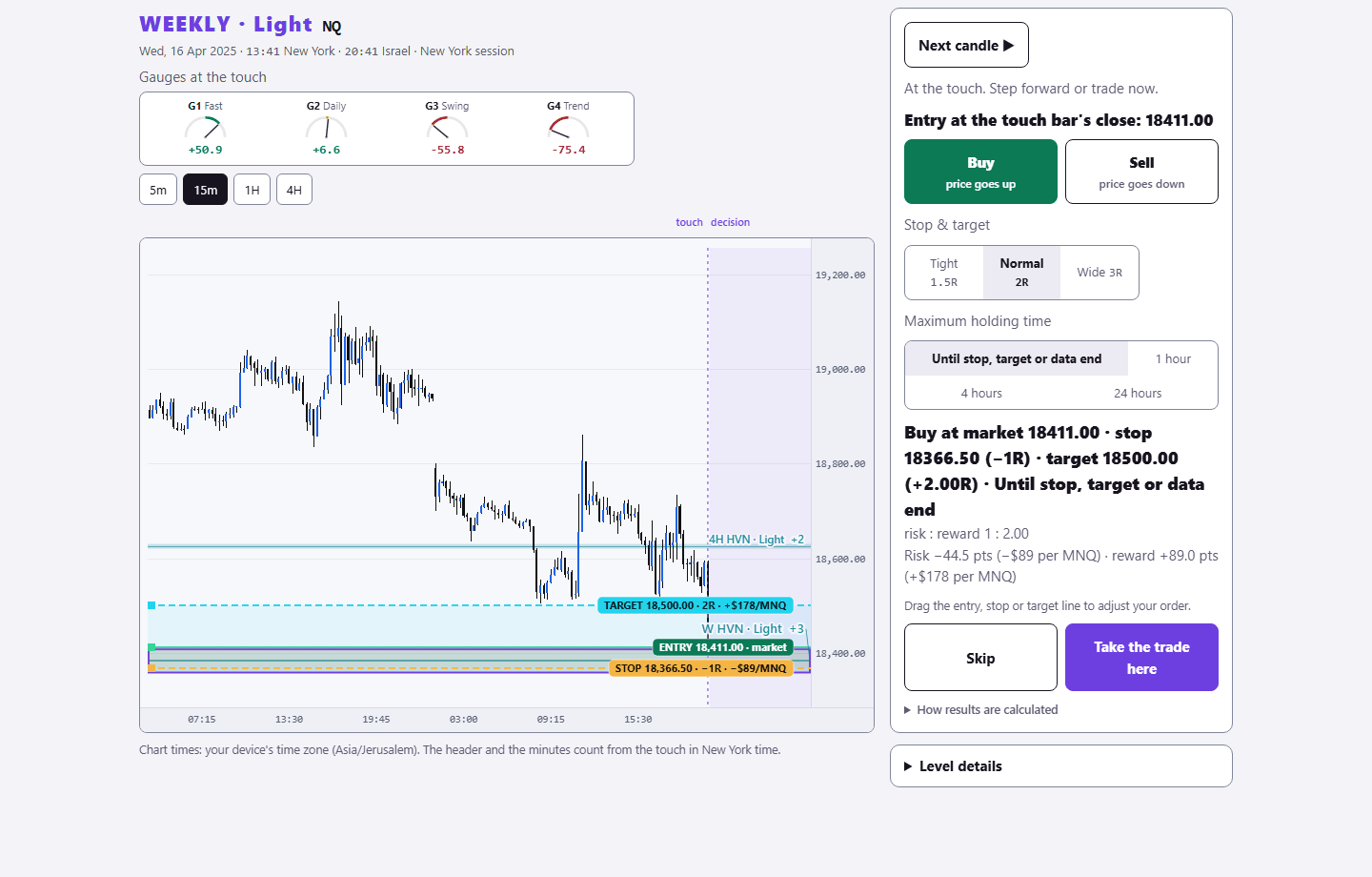
Sign in with your existing PurplEdge account. A free account gets one month from its first sign-in; paid plans have no end.
Practice in Level Arena →