Stops, drag and split
VECTOR guards your position. Pictures from MIRROR; the extensions match.
1No stop?
Red line? Click «🛡 Protect».

2Stops don't cover the position?
Amber line? Click «FIX STOP».

3Confirm the stop fix
Review the proposed stop, then ✔ Confirm.
4Target doesn't fit the position?
Click «⤒ FIX TP», check, then ✔ Confirm.
5Drag lines on the chart
«Drag lines» on? Drag a stop, target or entry.
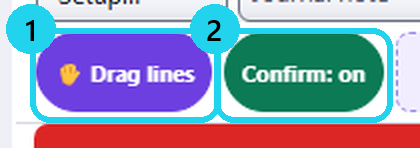
6BE · Trail
Click BE or Trail, check each stop, Confirm.

7Stop at or past the price?
Stop rejected. Nothing sent.

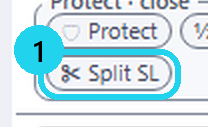
8✂ Split TP / SL
3 stop + target pairs. Needs 2+ contracts.
Known issue — Tradovate: a target added by 🛡 Protect before 2.6.60 can still be working after the trade closed. When a contract is flat, check Tradovate's Orders and cancel any leftover limit or stop.
⚠ VECTOR never cancels or changes an order you placed yourself.
More
- Confirm: on — tightening a stop or moving a target asks ✔ Confirm. With it off, the move applies when you release the line.
- ⤒ FIX TP never leaves two targets and never moves the stop. It adds a missing target only on TradingView with a broker that supports position brackets; elsewhere it only fixes the size, or a grey line says why. On TopstepX with Position Brackets it isn't offered yet — set the target with the entry.
- Always asked: loosening a stop, moving a waiting entry, BE and Trail. Alt+E (BE) asks first too.
- Dragging an entry? The stop stays, and the quantity changes so the $ risk stays the same.
- Split on an open position: Tradovate, VECTOR MIRROR, NinjaTrader and Bybit. On TopstepX: split at entry (2 or 3) in the ticket.
- Your exits bigger than the position? You only get an amber warning.
🎯 Practice in Level Arena
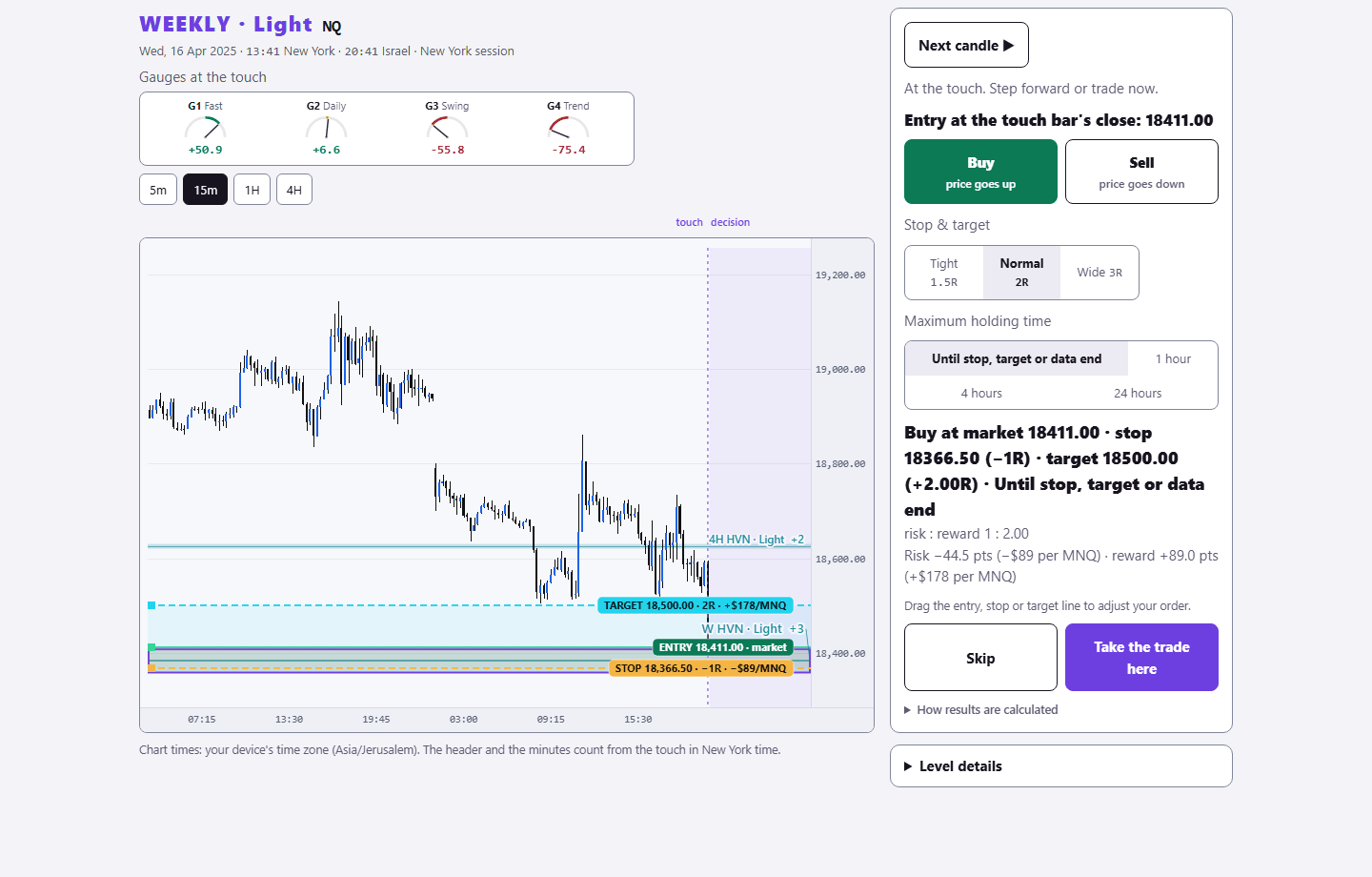
A training game: real moments when price touched a VECTOR level, from 2018 to today. Play each one as a trade — side, entry, stop, target and a time limit — then see the real outcome in R.
Sign in with your existing PurplEdge account. A free account gets one month from its first sign-in; paid plans have no end.
Practice in Level Arena →