Install VECTOR in Chrome
For TradingView, Tradovate and TopstepX. About two minutes each.
1Download and run VECTOR Setup
From your personal link, within 30 minutes (expired? ask support for a new one). Blue warning? More info, Run anyway.
2Tick what you use
Your platform — and VECTOR MIRROR or NinjaTrader, if you use them. Then Next.
3Turn on Developer mode
Open chrome://extensions, flip the switch.

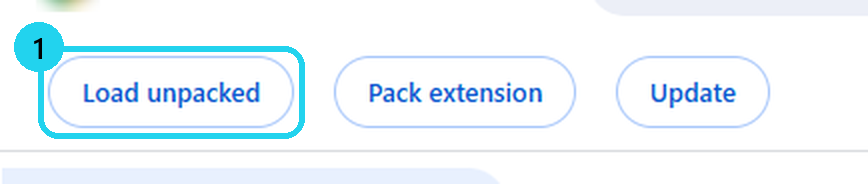
4Click Load unpacked
Setup's «Copy the folder», paste, Select Folder.
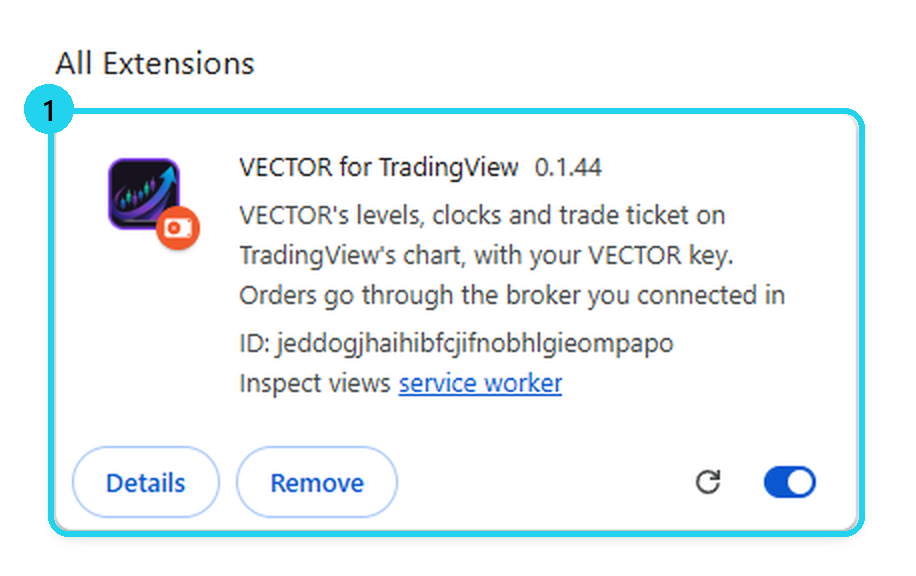
5VECTOR's card appears
The extension is installed.
6Paste your VECTOR key
This step is changing soonIn Setup: «Copy the key». On VECTOR's welcome page: Ctrl+V, then «Connect». Your key keeps working after sign-in arrives.
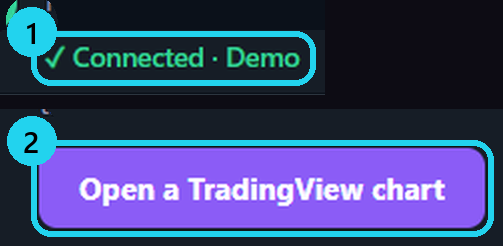
7Check: «✓ Connected»
Then open your chart, logged in to your platform.
8Tradovate only: add the indicator
Indicators, then VECTOR by PE, then Save.
9Pin VECTOR
Chrome's Extensions menu, then the pin.
⚠ Your key and your personal link are yours alone — never share them. Support never asks for your key, a code or a password.
More
- VECTOR MIRROR or NinjaTrader? The same VECTOR Setup installs them. MIRROR links your key by itself; NinjaTrader: close and reopen it, then add «VECTOR System» to the chart. Guides: VECTOR MIRROR · NinjaTrader.
- No levels on the chart? Reload (⟳) and check the VECTOR icon says «Connected».
- Another platform? Run VECTOR Setup again — it shows what is missing.
- VECTOR updates itself, only when no trade is open.
- No Chrome? The installer offers to get it.
- Stuck? Give support your Support ID — never the key.
🎯 Practice in Level Arena
A training game: real moments when price touched a VECTOR level, from 2018 to today. Play each one as a trade — side, entry, stop, target and a time limit — then see the real outcome in R.
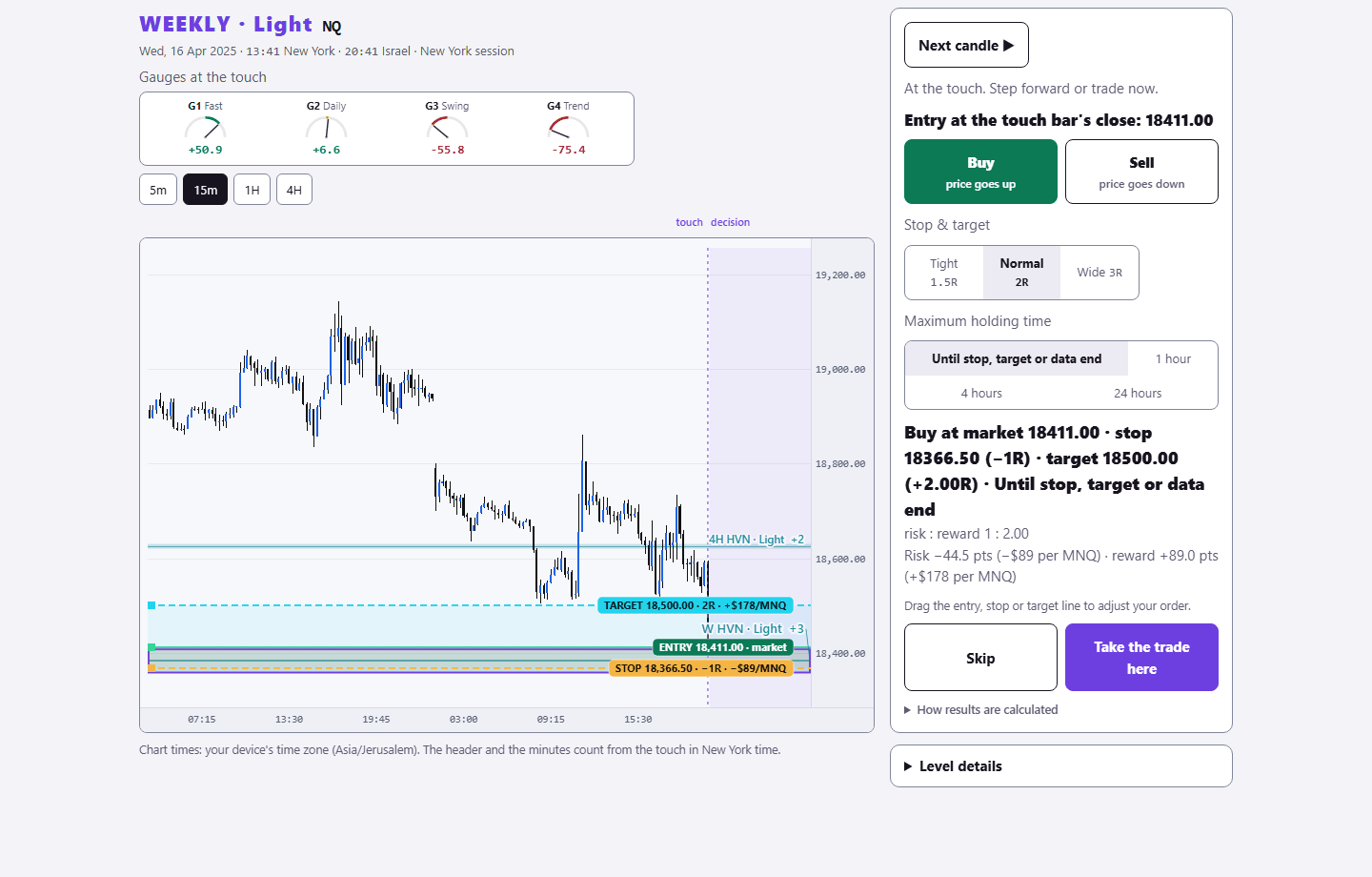
Sign in with your existing PurplEdge account. A free account gets one month from its first sign-in; paid plans have no end.
Practice in Level Arena →